Jupyter Notebook vs JupyterLab: 2026 Comparison Guide
Jupyter Notebook vs JupyterLab: Detailed comparison for 2026. Explore UI, performance, & use cases to select the ideal tool for your data workflow.
https://www.youtube.com/watch?v=SIEr0DeHgGE
published
Outrank AI
jupyter notebook vs jupyterlab, jupyter, data analysis, python notebooks, data science tools
9ddffe70-dd4e-4d4a-b20a-553907c5f67f

Your team is probably already feeling this decision.
One analyst wants classic Jupyter Notebook because it opens fast and stays out of the way. A data engineer wants JupyterLab because a single notebook no longer covers the job. A product manager only needs to run a prepared notebook once a week and doesn't want an IDE dropped in their lap. Meanwhile, the person responsible for standards has to decide what to support, document, secure, and troubleshoot.
That's why Jupyter Notebook vs JupyterLab isn't a cosmetic choice. It changes onboarding, hardware requirements, maintenance burden, and how much context switching your team does every day. For a growing startup, the wrong default turns the data team into a support desk.
If you're comparing environments, it's worth looking beyond feature checklists and reviewing a broader set of Python notebook options for analytics teams. The practical question isn't which interface has more buttons. It's which one lowers friction for the work your team does most often.
Table of Contents
Jupyter Notebook vs JupyterLab The Core Decision for Modern Data Teams
Understanding the Fundamental Shift From Document to Workspace
Jupyter Notebook vs JupyterLab The Core Decision for Modern Data Teams
A lot of startup teams reach this decision the same way. They don't wake up and say, “We need a notebook strategy.” They hit the point where analysts have one setup, engineers have another, and everyone shares .ipynb files with slightly different assumptions about dependencies, folder structure, and where supporting files live.
Classic Jupyter Notebook usually wins early because it's easy to explain. Open a notebook, run cells, inspect output, move on. That simplicity matters when the team is small and most work is ad hoc.
Then the work changes.
Instead of one notebook, a team now has a notebook, a helper script, a CSV, a terminal session, and a config file. Someone needs to inspect logs while rerunning cells. Someone else needs to compare two notebooks side by side. The environment that felt simple starts creating hidden operational cost because people keep jumping between browser tabs, file explorers, and terminal windows.
The real standardization question
For a modern data team, the decision is less about personal preference and more about where workflow friction shows up.
If most work is single-file analysis, Notebook often keeps the path cleaner.
If most work is project-based, JupyterLab usually removes enough switching cost to justify its added complexity.
If your user base includes non-technical stakeholders, the simplest supported path often matters more than feature depth.
If your team is already stretched, maintenance overhead matters as much as interface quality.
Practical rule: Standardize around the environment that fits your dominant workflow, not the one that looks most capable in a demo.
That's the core issue in Jupyter Notebook vs JupyterLab. You're not selecting a winner in the abstract. You're choosing what your team will open every day, what new hires will learn first, and what your least technical user can still find their way around without asking for help.
Understanding the Fundamental Shift From Document to Workspace
Jupyter Notebook started life as IPython Notebook and was renamed in 2014, becoming part of Project Jupyter, which supports more than 40 languages including Python, R, and Scala, as described in Domino's overview of Jupyter Notebook. That history matters because JupyterLab didn't appear as an unrelated tool. It grew from the same notebook model and works with the same .ipynb files.
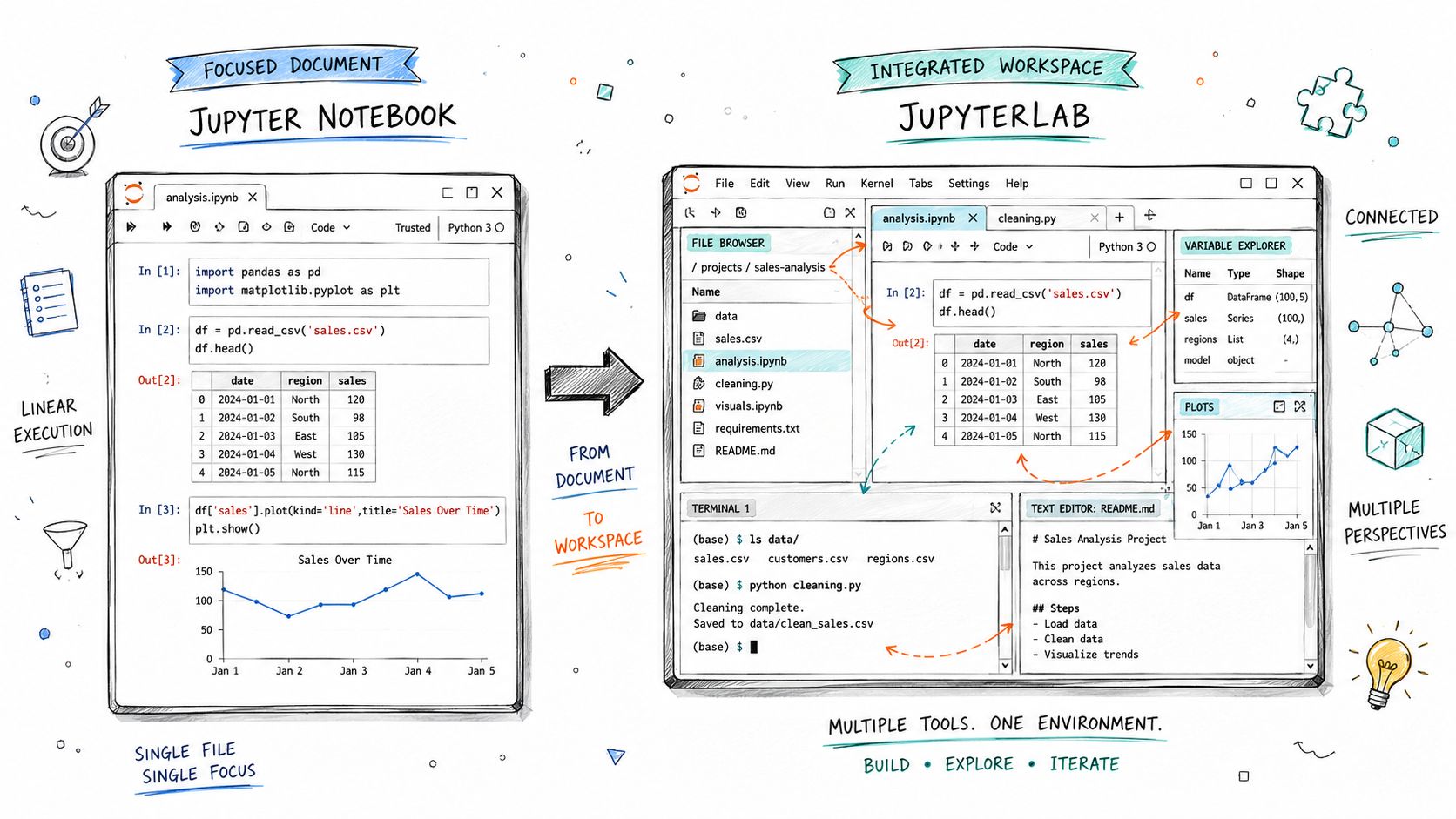
A useful way to think about it is this:
Jupyter Notebook is a document
JupyterLab is a workspace
That sounds small. It isn't.
Why the file format is not the real issue
Both tools open the same notebook files. So teams that frame the choice as a compatibility decision are solving the wrong problem. If you're interested in how notebook workflows are evolving more broadly, this perspective on the changing role of notebooks is a useful companion read.
Notebook is closest to a digital lab notebook. You move down a linear page, mixing code, charts, notes, and outputs. That's perfect when the notebook itself is the work product.
JupyterLab assumes the notebook is only one part of the work product. You may also need a text editor, a terminal, a file browser, and another notebook open at the same time. The primary unit is no longer one narrative document. It's the broader project surface around that document.
How the workspace model changes daily work
The single-document model helps when the task is focused. An analyst exploring a funnel dropoff or testing a transformation can stay inside one page and think in sequence. Fewer visible controls mean less distraction.
The workspace model helps when the task expands beyond one file. A user can keep notebooks, terminals, text files, and browser panes visible in one environment. That isn't a cosmetic convenience. It changes how often people lose context.
A single notebook is good at explanation. A workspace is good at execution.
In practice, that difference shows up fast:
With Notebook, people often open extra browser tabs or switch to local folders to manage supporting files.
With JupyterLab, the project structure is closer to the analysis itself.
With Notebook, one-off exploration stays clean.
With JupyterLab, multi-step work stays contained.
This is why the Jupyter Notebook vs JupyterLab debate is often misframed. The choice is between a minimal, linear interface and an integrated, project-oriented environment. Once you see that, the trade-offs become easier to judge.
A Side-by-Side Comparison of Key Features
JupyterLab is built as a multi-document, IDE-like environment that keeps notebooks, terminals, text editors, file browsers, and output panes open side by side, while classic Notebook focuses on one .ipynb document at a time, as outlined in this Jupyter vs JupyterLab comparison. That architectural difference affects nearly every daily task.
Jupyter Notebook vs JupyterLab at a Glance
Feature | Jupyter Notebook | JupyterLab | The Bottom Line |
|---|---|---|---|
Interface | Single-document view | Tabbed, multi-pane workspace | Notebook is simpler. JupyterLab handles broader project work. |
Best fit | One-off exploration | Multi-file and multi-tool workflows | Match the tool to the scope of work. |
File handling | Basic and separate-feeling | Integrated file browser and project view | JupyterLab reduces hopping between tools. |
Terminals and editors | Less central to the experience | Native to the workspace model | JupyterLab is better when code lives beyond the notebook. |
Learning curve | Lower | Higher | Notebook is easier for occasional users. |
Extensibility | More limited in practice | Better suited to extension-driven workflows | JupyterLab supports more customization for power users. |
Team overhead | Lower for light usage | Higher if users don't need the extra surface area | More capability isn't free. |
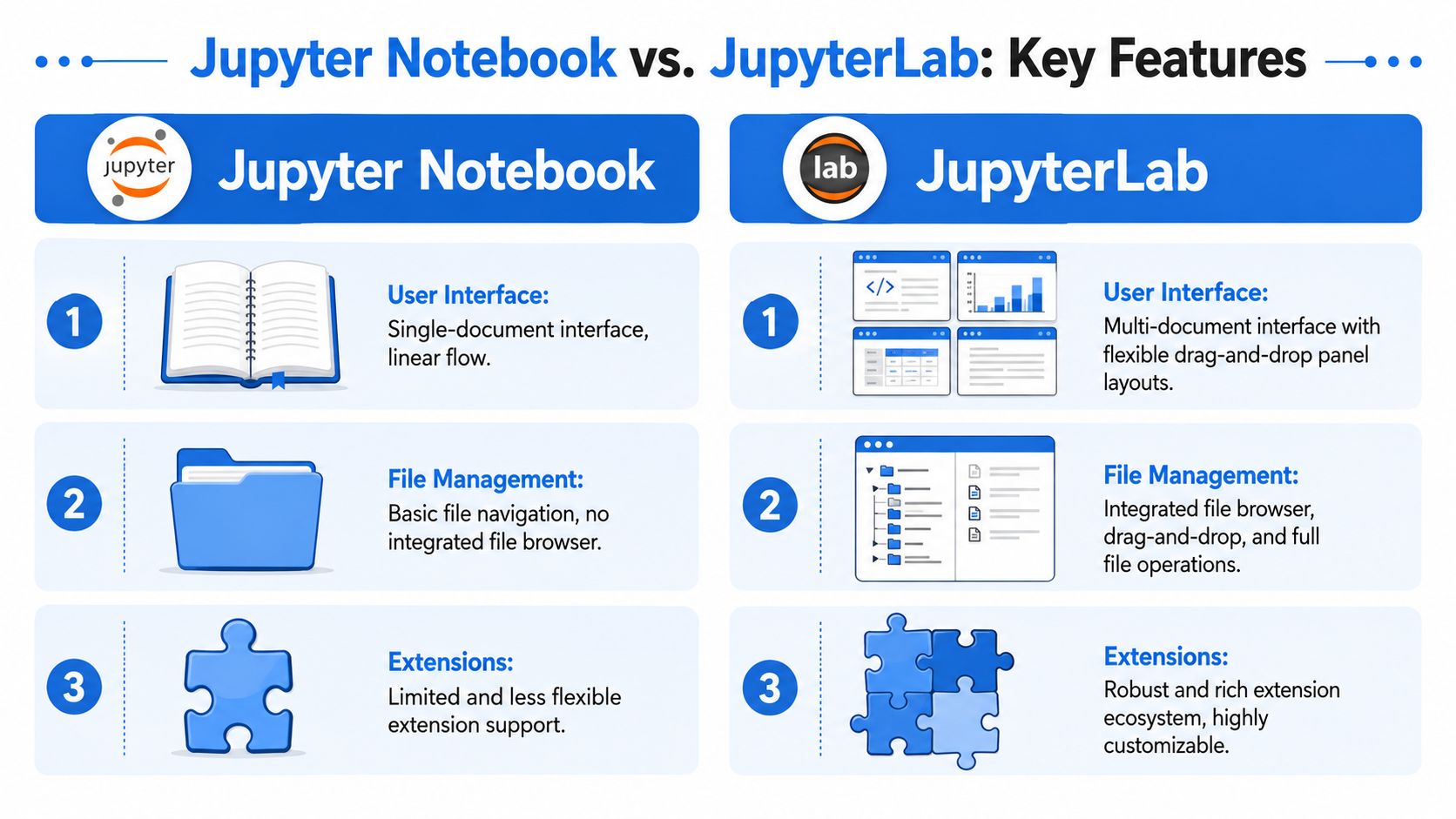
A visual walkthrough helps if your team is deciding what users will see day to day.
If your team builds repeatable analysis flows, these interactive notebook templates for analytics work are worth studying because they make the workflow differences more concrete than a feature checklist does.
Where JupyterLab saves time
JupyterLab earns its keep when people regularly need supporting assets around the notebook.
Open a notebook, keep a terminal in one pane, inspect a data file in another, and edit a helper script without leaving the same browser window. That's the JupyterLab advantage in one sentence.
A few examples matter more than generic claims:
Debugging multi-step work
If a user is running notebook cells while checking package state, log output, or shell commands, JupyterLab avoids constant app switching.Comparing source files
Teams often need to inspect a CSV, JSON file, or Python script next to the notebook that consumes it. JupyterLab supports that naturally.Project navigation
Once a repository contains more than one meaningful file, Notebook starts to feel like a viewer with code execution. JupyterLab feels closer to a working environment.
Where Notebook still wins
Notebook is still the better choice in a narrow but important set of situations. That set includes more users than many platform teams admit.
Teaching and onboarding
New users don't need panel management, workspace layouts, and extra controls on day one.Fast ad hoc analysis
When the task is “open this notebook, run a few cells, answer one question,” Notebook stays efficient.Occasional usage by non-specialists
Product managers and operators tend to do better in tools that remove options rather than add them.
Operational warning: Teams often over-standardize on power-user tooling, then spend months writing documentation to make casual users survive it.
The mistake in Jupyter Notebook vs JupyterLab isn't choosing one tool over the other. It's pretending the same interface serves exploratory analysts, engineering-heavy workflows, and light business users equally well.
Evaluating Performance and Resource Management
The biggest hidden cost in this decision is usually overhead.
Multiple independent comparisons note that JupyterLab is slightly to materially more resource-intensive than classic Notebook because of its richer interface and workspace model, while Notebook is lighter and better suited to low-spec machines or quick experiments, according to this comparison of Jupyter Notebook and JupyterLab. For teams standardizing on one environment, that matters more than it sounds.
What the extra overhead buys you
JupyterLab uses those extra resources to support the very things people ask for when projects get more serious.
Integrated workspace elements such as terminals, editors, and browsers
Project-level tooling that fits more than one file
A richer UI model that supports side-by-side work
Advanced development workflows that would feel awkward in a single-page notebook
If your analysts and engineers keep several notebooks open, switch kernels, inspect files, and debug code often, that overhead may be a fair trade. The tool is doing more.
When heavier becomes too heavy
The problem shows up when teams give everyone the heavy setup by default.
A product manager opening one prepared notebook doesn't get much benefit from a full workspace. A junior analyst doing quick exploratory work may not need terminals, pane management, or broad extension support. In those cases, JupyterLab's extra surface area adds cost without adding much speed.
That cost shows up in several forms:
Machine resource use on older laptops or constrained environments
Longer perceived startup and navigation friction
More interface to explain during onboarding
More support requests from infrequent users
The practical takeaway is simple. Don't evaluate performance as a benchmark issue alone. Evaluate it as part of total workflow cost. A tool that saves time for power users can still slow down the organization if everyone else struggles to operate it.
Which Tool Is Right for Your Role
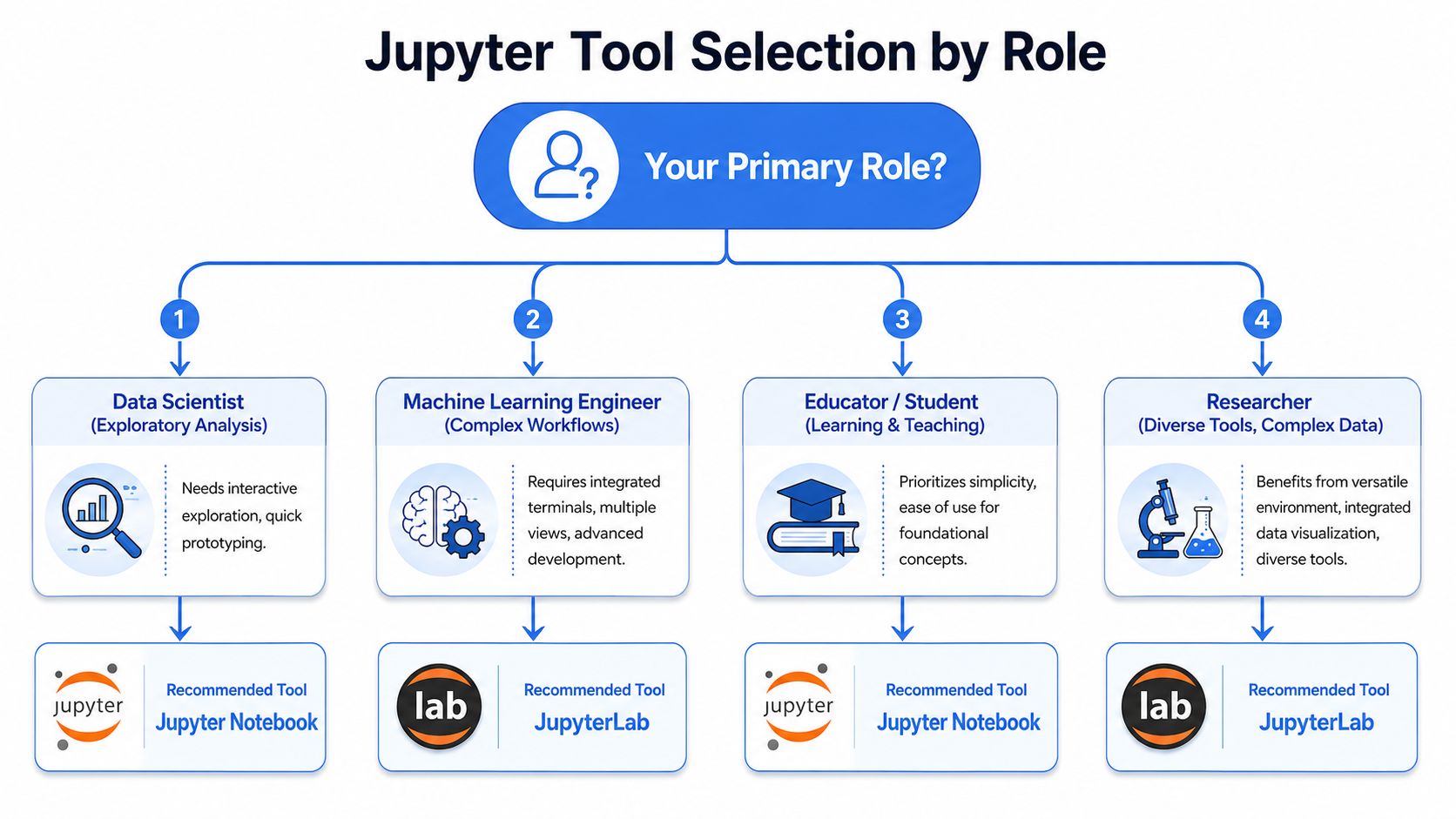
The best answer to Jupyter Notebook vs JupyterLab often depends on who is opening it and what they need to do before lunch.
The useful framing comes from workflow cost, not abstract capability. As Deepnote's comparison of Jupyter Notebook and JupyterLab puts it, the choice is a trade-off between features and complexity, and the best tool is the one that minimizes friction for the dominant workflow.
Data analyst
A working analyst sits in the middle.
If the analyst spends most of the day in a single notebook, cleaning data, writing commentary, and producing charts, classic Notebook is often enough. The interface is tight, the cognitive load is lower, and the notebook reads like a report.
But many startup analysts don't stay in that clean lane for long. They open SQL exports, helper scripts, text notes, and local files. They rerun cells while checking outputs elsewhere. Once that becomes normal, JupyterLab starts saving time every day.
A practical rule works well here:
Choose Notebook for lightweight exploration and narrative analysis.
Choose JupyterLab when the analyst's work regularly touches multiple files or tools in one session.
Data engineer
Data engineers usually benefit more from JupyterLab.
Their notebook work often sits next to scripts, terminals, logs, environment checks, and project directories. Even when the notebook is only part of the task, they still need to move between artifacts quickly. A single-document interface can feel cramped in that workflow.
For engineering-adjacent use, JupyterLab is usually the better home because it aligns with the way engineers already work. The workspace behaves more like an IDE and less like a report page.
If a user keeps reaching for a terminal, another file, or a second notebook, they've already outgrown a single-document default.
Product manager and other light users
Many standardization plans often go wrong.
A product manager who occasionally runs a notebook is not choosing between two developer tools on merit. They are choosing whether the environment feels understandable enough to use at all. If you standardize on the most capable option without thinking about this group, they'll either avoid the tool or ask the data team to do the work for them.
For light users, classic Notebook often works better because:
The screen asks fewer questions
The path from open to run is shorter
The chance of breaking workflow by clicking around is lower
That doesn't mean PMs should never use JupyterLab. It means they should only get it when their actual work benefits from the extra environment.
Role-based recommendation summary
Role | Better default | Why |
|---|---|---|
Analyst doing one-off analysis | Jupyter Notebook | Lower friction, cleaner narrative flow |
Analyst working across files and scripts | JupyterLab | Better project navigation and less context switching |
Data engineer | JupyterLab | Integrated terminal, file access, and multi-pane work |
PM or occasional business user | Jupyter Notebook | Simpler interface and lower learning burden |
The more mixed your audience is, the more carefully you need to separate power-user defaults from organization-wide defaults.
Migrating and Future-Proofing Your Analytics Workflow
The good news is that migrating from Notebook to JupyterLab usually isn't a file migration problem at all.
Older comparisons are increasingly incomplete because JupyterLab supports the same .ipynb format as classic Notebook. The primary decision is workflow style, not notebook compatibility, as noted in the JupyterLab notebook documentation. That means many teams can move toward JupyterLab without rewriting their existing notebooks.
If your analysts are also blending SQL and Python work in the same environment, this look at why fast-growing startups are moving to SQL and Python in one notebook adds a useful layer to the migration discussion.
What migration usually looks like
For most startups, the shift is more like an interface upgrade than a platform replacement.
Existing notebooks still open. Existing habits still transfer. The main change is that users now have a broader workspace around the notebook itself. That reduces migration risk, but it doesn't remove rollout risk. Teams still need to decide who should move first and which workflows benefit enough to justify the change.
A sensible rollout often starts with the users already showing the strongest need for project-based work. Those are usually engineering-heavy users and analysts working across multiple assets.
How to standardize without forcing everyone into one mode
A good standard doesn't require every user to adopt the same interface for every task. It sets a primary environment and defines exceptions clearly.
That usually means:
Use JupyterLab as the forward-looking standard for project-based workflows
Keep Notebook available for light, single-file use cases
Document when each is preferred so users don't guess
Train around workflow patterns, not feature tours
This matters even more as the experiences continue converging. The safest long-term choice is often to support the interface model that matches where your team's work is heading, not just where it started.
Your Final Decision Checklist for Adopting Jupyter
An early community poll showed 13% of respondents using classic Jupyter Notebook and 4% using JupyterLab, roughly a 3:1 preference for Notebook at that point. By 2026, comparison guides describe JupyterLab as the modern default for project-based work, which signals a meaningful shift in the direction of the ecosystem, as discussed in this Jupyter community thread on Notebook vs JupyterLab usage.
That trend doesn't mean every team should force an immediate switch. It means the strategic default has moved, especially for teams whose work is no longer confined to one notebook at a time.
Choose Jupyter Notebook if
Your dominant workflow is single-notebook analysis
Your least technical users need the simplest possible interface
You support many occasional users
Machine constraints or lightweight environments matter a lot
You want minimal onboarding burden
Choose JupyterLab if
Your team works across notebooks, scripts, terminals, and files
Analysts and engineers regularly manage project directories
You need a workspace that reduces context switching
Extensions, debugging, and integrated tooling matter
Your analytics work is becoming more operational and multi-step
Standardize with fewer regrets
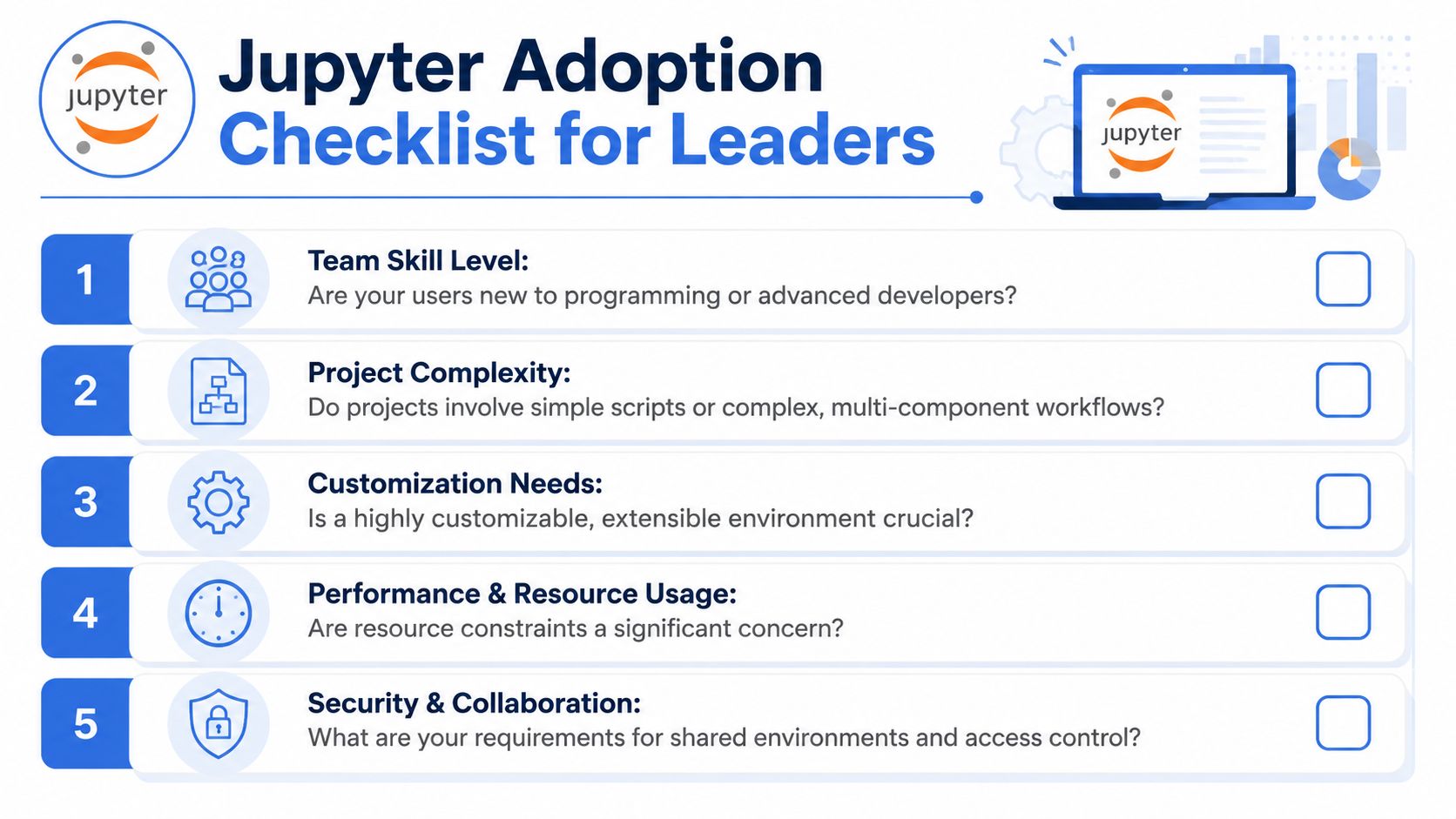
Before you lock in a default, ask five blunt questions:
What does most of the team do each day?
What can your least technical user handle without support?
How often do users need files, terminals, or multiple panes open together?
Are you optimizing for one-off exploration or project execution?
Will the chosen default reduce support load, or create it?
If most of your team lives in one notebook at a time, Notebook still has a strong case. If your team's work increasingly looks like small software projects around notebooks, JupyterLab is usually the better long-term standard.
The best decision in Jupyter Notebook vs JupyterLab is the one that lowers friction across the whole team, not just for the most technical person in the room.
Querio helps teams turn notebook-based analytics into scalable self-service infrastructure. If your data team is overloaded with one-off requests and your business users still depend on analysts for every question, Querio gives you a faster path to warehouse-native analysis with AI coding agents, custom Python notebooks, and a file-system approach built for both technical and non-technical users.